Leaderboard: guide for dispatchers and owners
All screens and videos show a test company with made-up names and numbers.
On this page
- What it is and why
- Sign in
- Sign in with Cargo ETL ▶
- Who sees what
- Main screens
- Dashboard
- Leaderboard
- Live
- Dispatchers
- Goals
- Winners
- My Progress
- Settings (admins only)
- How to
- Put Live on the office TV ▶
- Pick a period or one team ▶
- Set a goal for a dispatcher ▶
- Change or remove a goal
- Check goals and their history ▶
- Set up a competition: day, week, month ▶
- Record the winners of a round ▶
- Choose how dispatchers are ranked ▶
- Look at one dispatcher's numbers ▶
- See your own progress (dispatchers) ▶
- Hide a dispatcher or add a photo ▶
- Questions
- A number differs from Cargo ETL ▶
- Do I need to enter data in Leaderboard?
- A new dispatcher is not on the board
- Why does someone see Settings and I do not?
- The sign-in page shows an error
- I changed the period on the TV and now everyone sees it?
- Why do the Dashboard totals stay the same when I pick a team?
- Why does Welcome back show zeros?
- How is XP counted?
- Can a dispatcher add their own photo?
- Are the prize bonuses paid automatically?
- Winners Hall is empty
- Live shows "Waiting for activity..."
- All videos (13)
Leaderboard (jobleaderboard.com) turns your Cargo ETL numbers into a scoreboard for the dispatch office. Inside the app it is called Dispatcher Motivation System.
What it is and why
- Every dispatcher's bids, loads, gross, profit and margin in one place, ranked
- A TV screen for the office: the Live page with the "King of the Hill" mountain and live standings
- Competitions for the day, week, month or year with prize money, and a Winners history
- Goals for each dispatcher: loads, bids, revenue, profit or margin per day, week or month
Nothing is typed in by hand. Leaderboard reads everything from Cargo ETL: the dispatcher list and their statistics. Live updates every 10 seconds, the Leaderboard and Goals pages every 30 seconds.
What the numbers mean:
| Word in the app | Meaning |
|---|---|
| Loads | Loads the dispatcher booked in Cargo ETL |
| Bids | Bids the dispatcher sent |
| Gross | Load rate total |
| Profit | Company profit on those loads (in Cargo ETL statistics it is called revenue) |
| Margin | Profit as a percent of gross |
| Win Rate | Loads divided by bids, in percent |
Sign in
Sign in with Cargo ETL
- Sign in to Cargo ETL as usual.
- In the left menu of Cargo ETL click L. Leaderboard opens already signed in, no separate password.
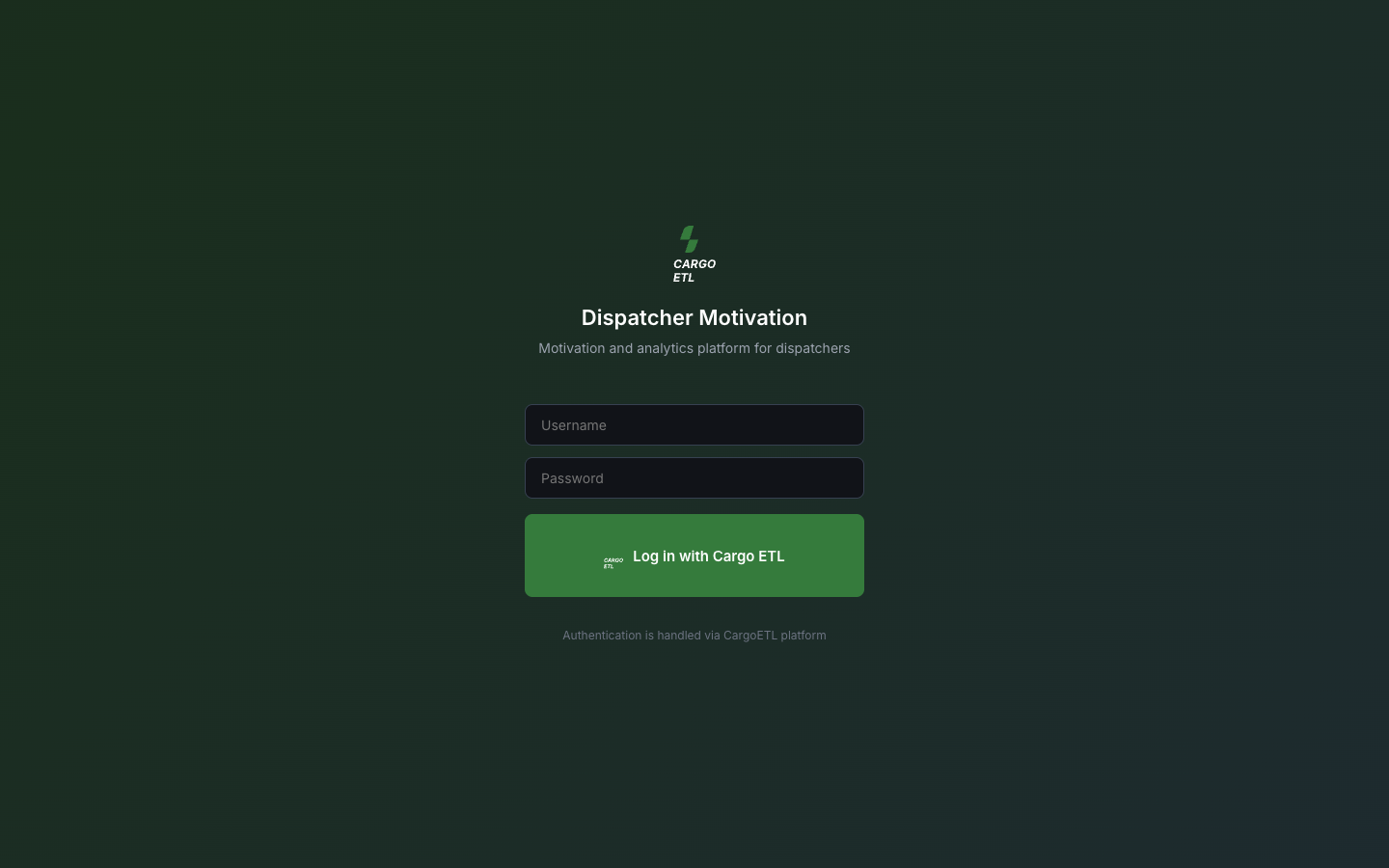
- Or open jobleaderboard.com, type your Cargo ETL Username and Password and click Log in with Cargo ETL.
To sign out, click Log out at the bottom of the left menu.
Who sees what
- Owners, admins and managers in Cargo ETL see everything, including Settings. They can set goals, hide dispatchers, add photos and record winners with Finalize
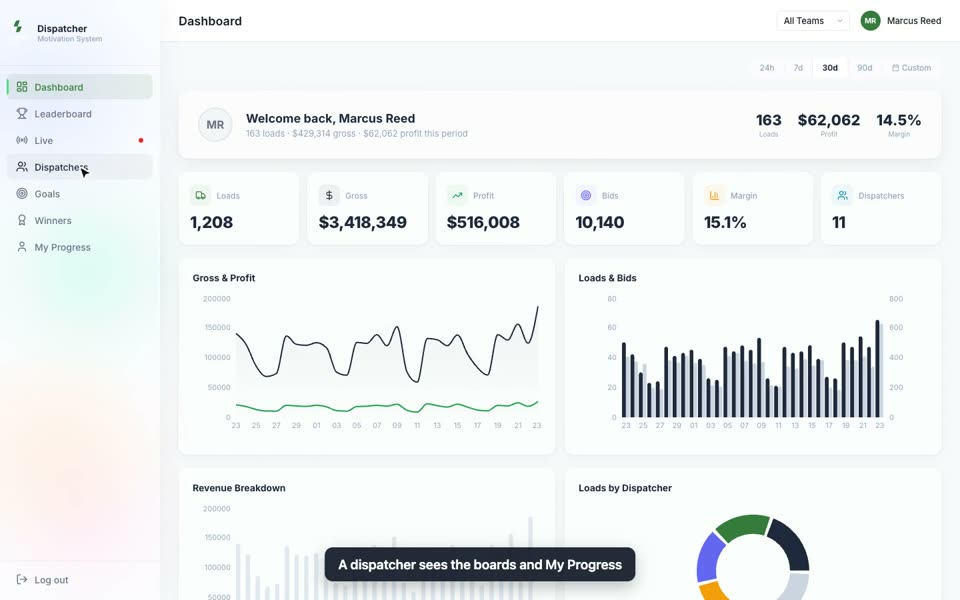
- Dispatchers see all the boards (Dashboard, Leaderboard, Live, Dispatchers, Goals, Winners) and their own My Progress page. They do not have Settings and cannot change anything
Roles come from Cargo ETL. To change what a person can do in Leaderboard, change their role in Cargo ETL. The new role applies the next time they sign in.
Main screens
The menu on the left: Dashboard, Leaderboard, Live, Dispatchers, Goals, Winners, My Progress, and Settings for admins. At the top right: the team filter (All Teams or one team) and your name.
Dashboard
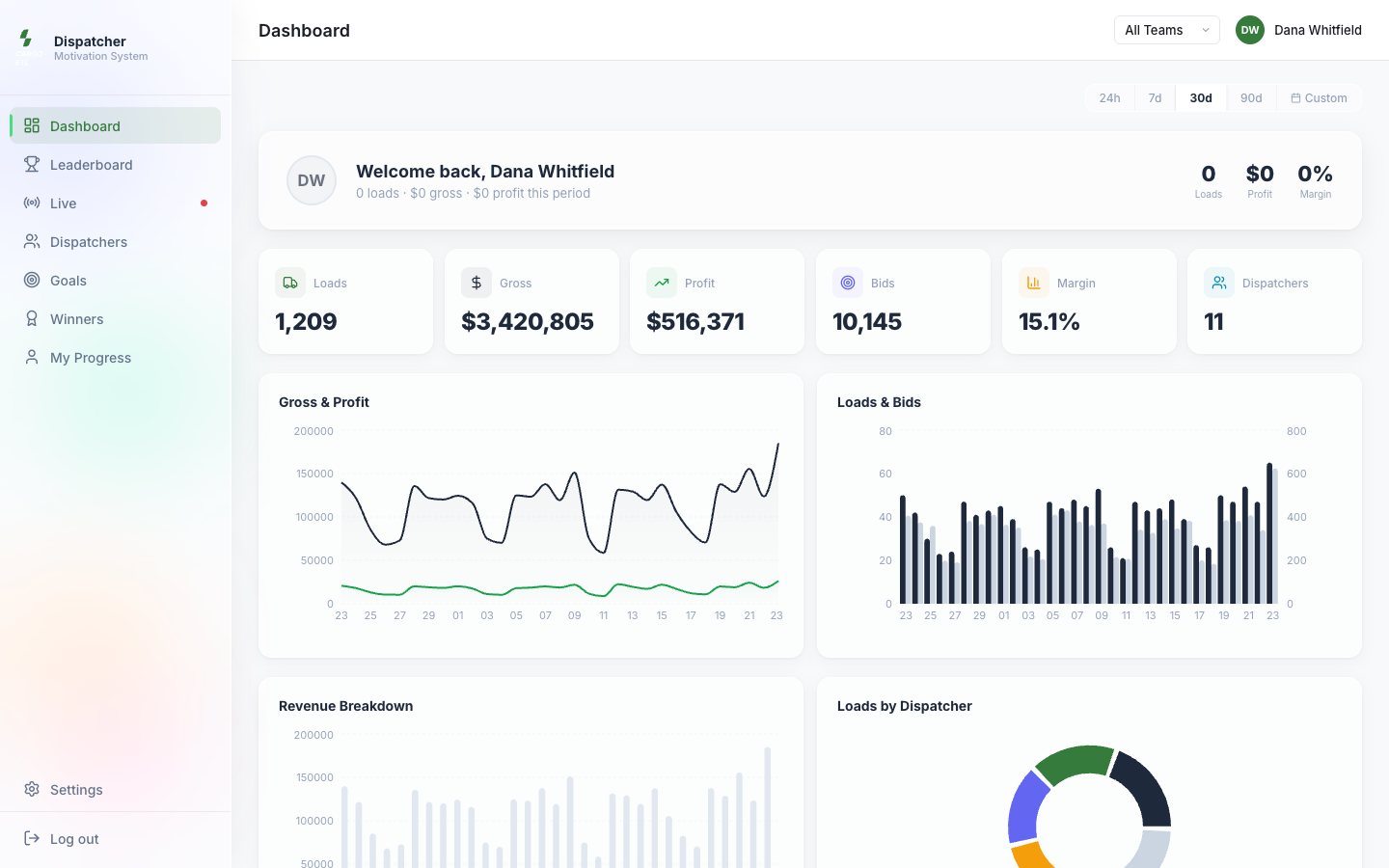
At the top, Welcome back with your own loads, profit and margin for the period. Then company totals: Loads, Gross, Profit, Bids, Margin, Dispatchers. Below are charts: Gross & Profit by day, Loads & Bids, Loads by Dispatcher, Top Performers, Profit by Dispatcher and others. The period is switched at the top right: 24h, 7d, 30d, 90d, Custom.
Leaderboard
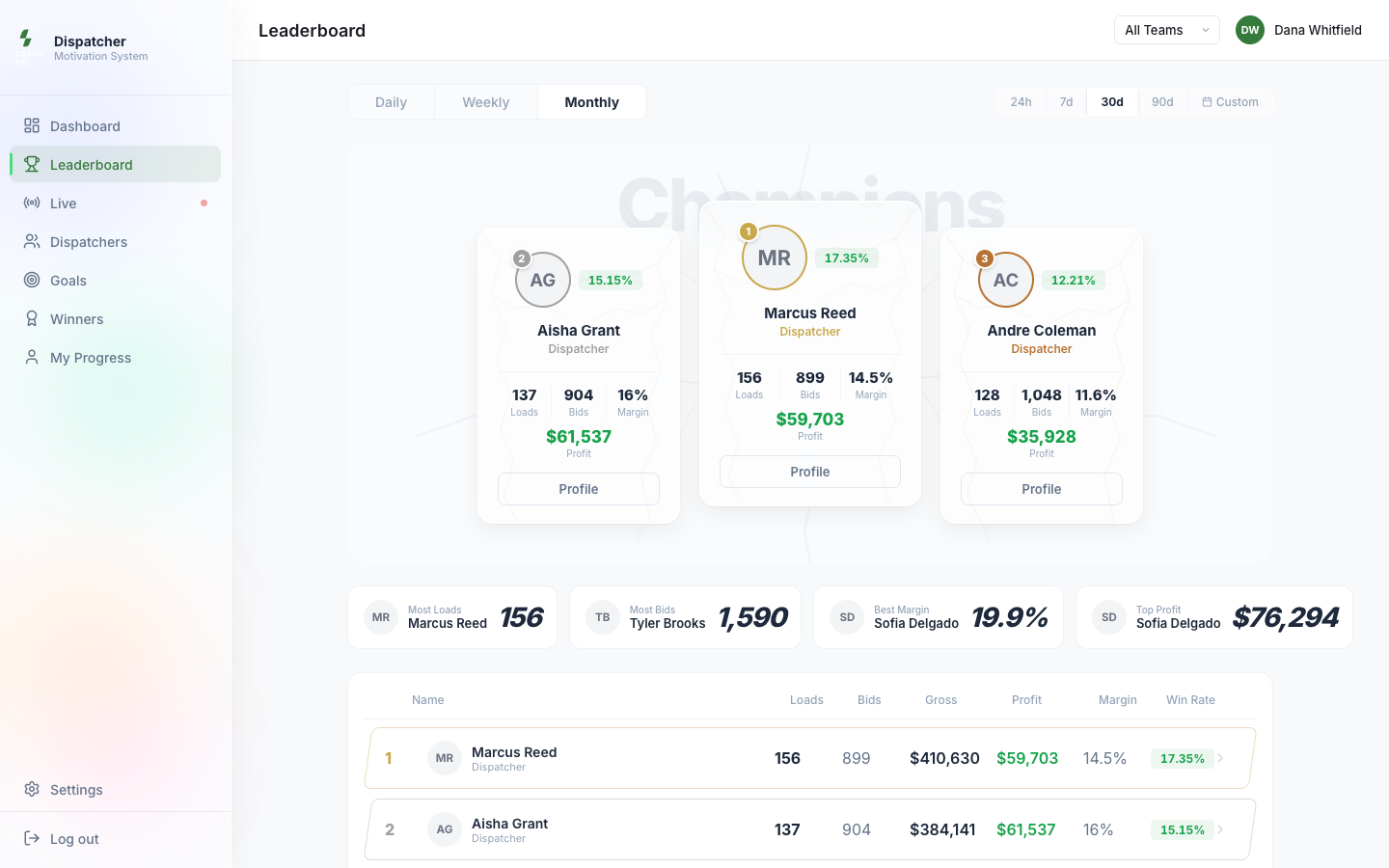
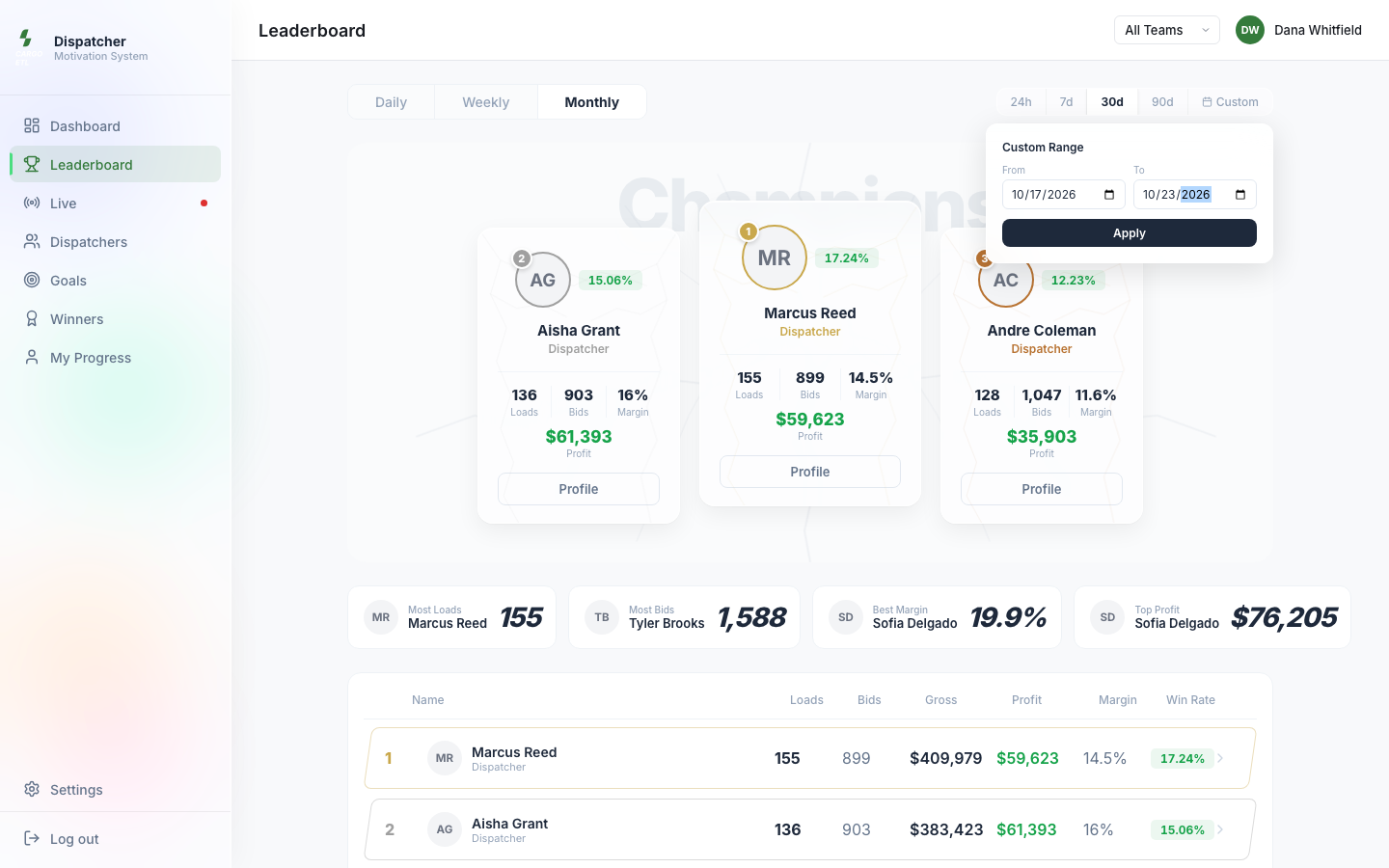
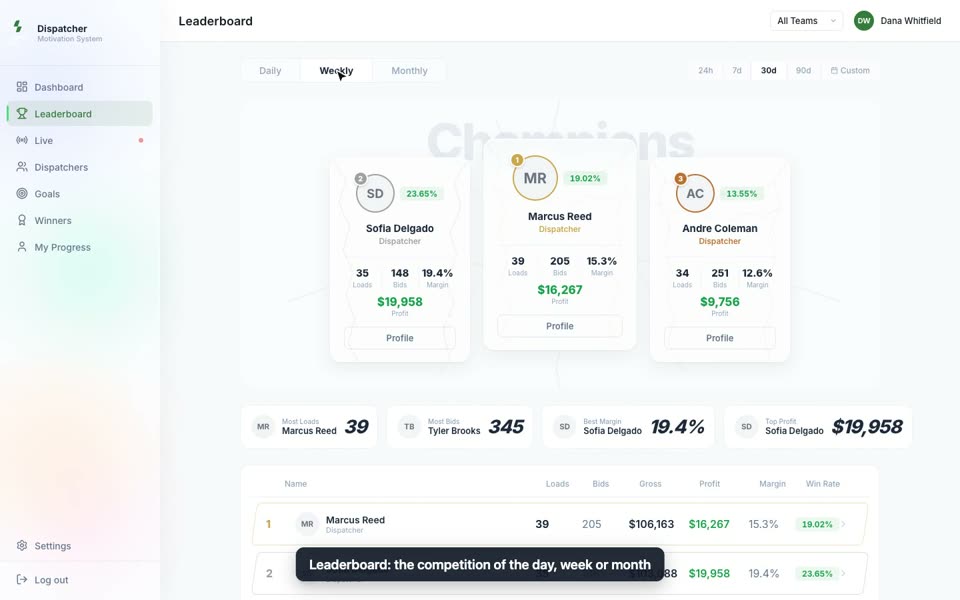
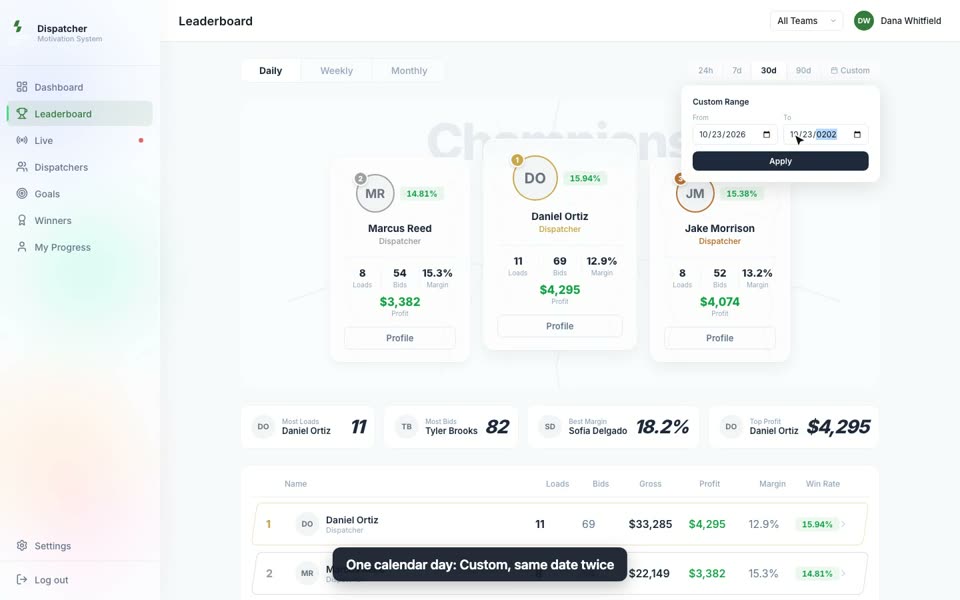
The competition page. Tabs Daily / Weekly / Monthly (and Yearly if it is turned on) show only the rounds that have prizes. Daily shows the last 24 hours, Weekly the last 7 days, Monthly the last 30 days.
- Champions: top 3 with loads, bids, margin and profit
- Four cards: Most Loads, Most Bids, Best Margin, Top Profit
- The table of all dispatchers: Loads, Bids, Gross, Profit, Margin, Win Rate. Click a row to open the dispatcher's card
- Prize Pool and Ends in: total prize money of the round and time left, prize cards below
Live
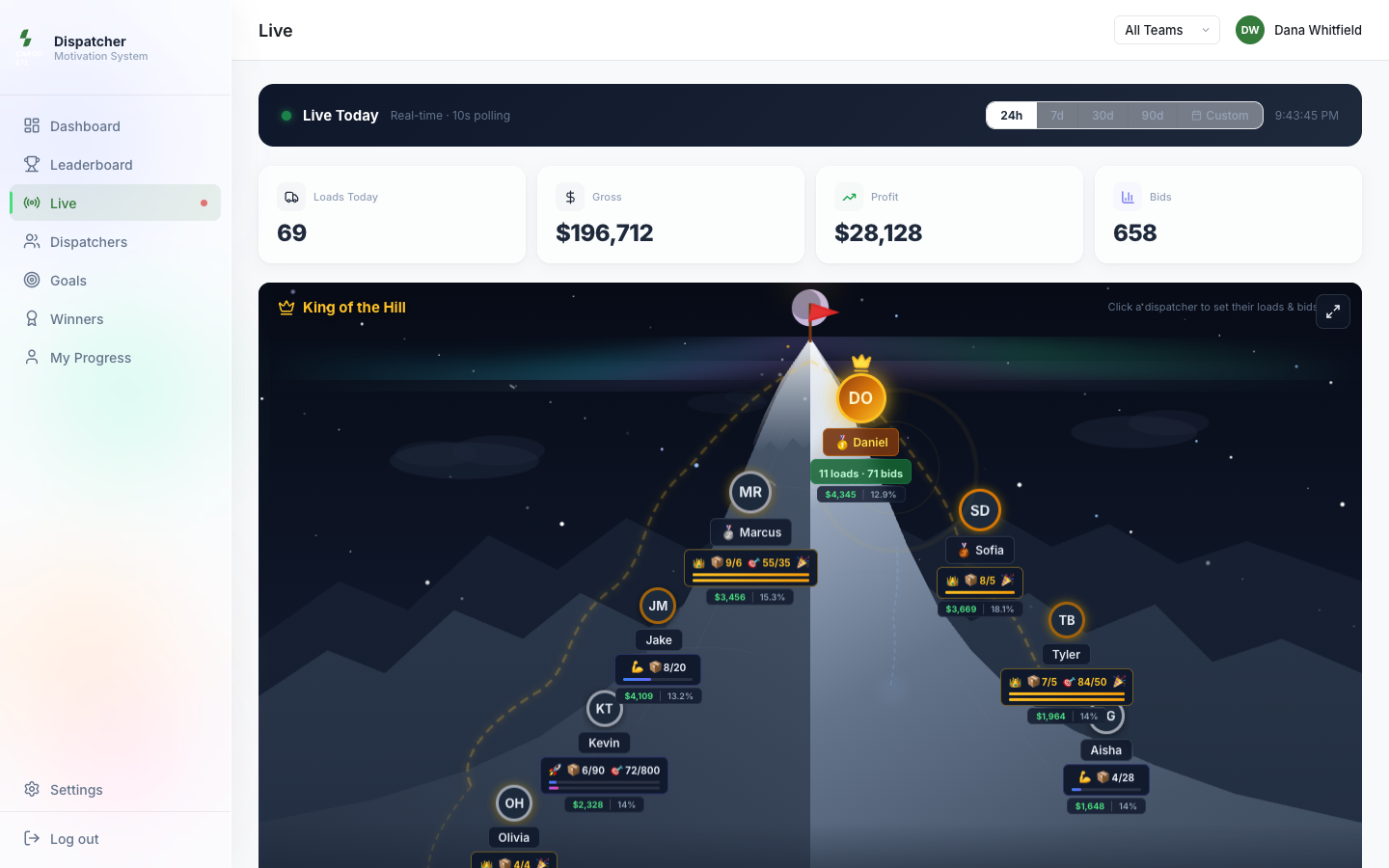
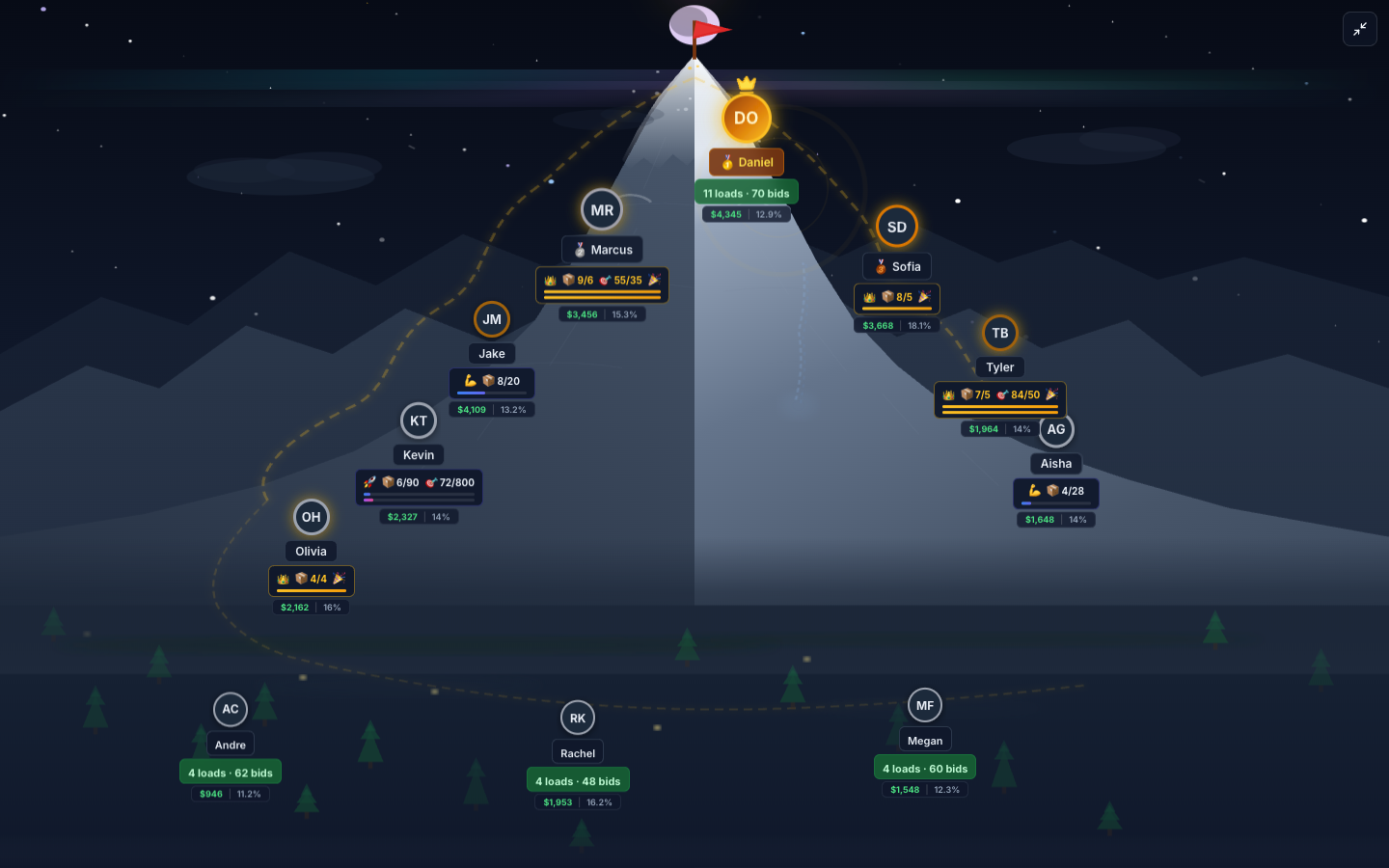
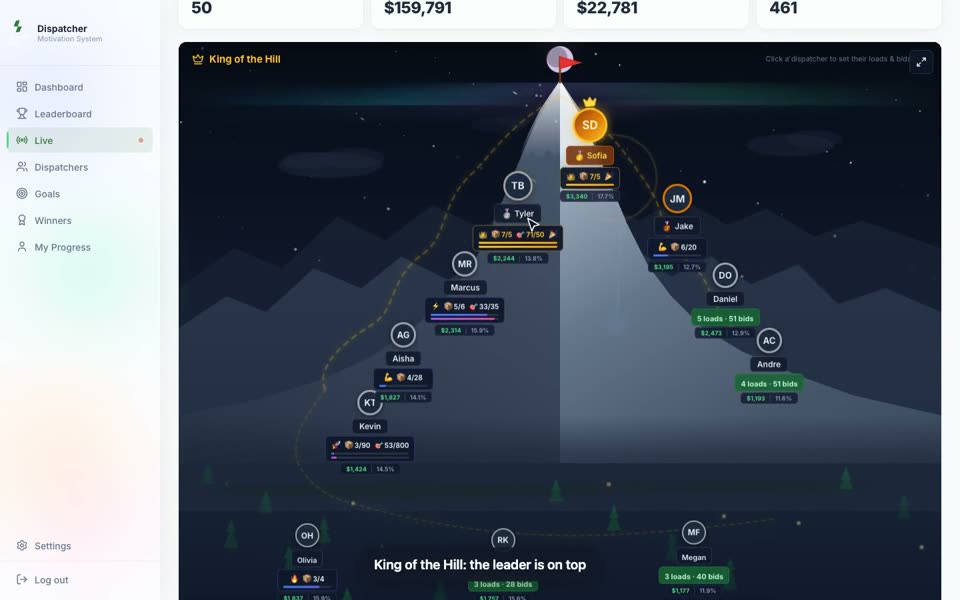
The screen for the office TV. Live Today at the top with the period buttons, then four totals (Loads Today, Gross, Profit, Bids), the King of the Hill mountain (the leader stands on top), Gross Race, Activity Feed (who booked a load or sent bids since the page was opened) and Live Standings.
Dispatchers
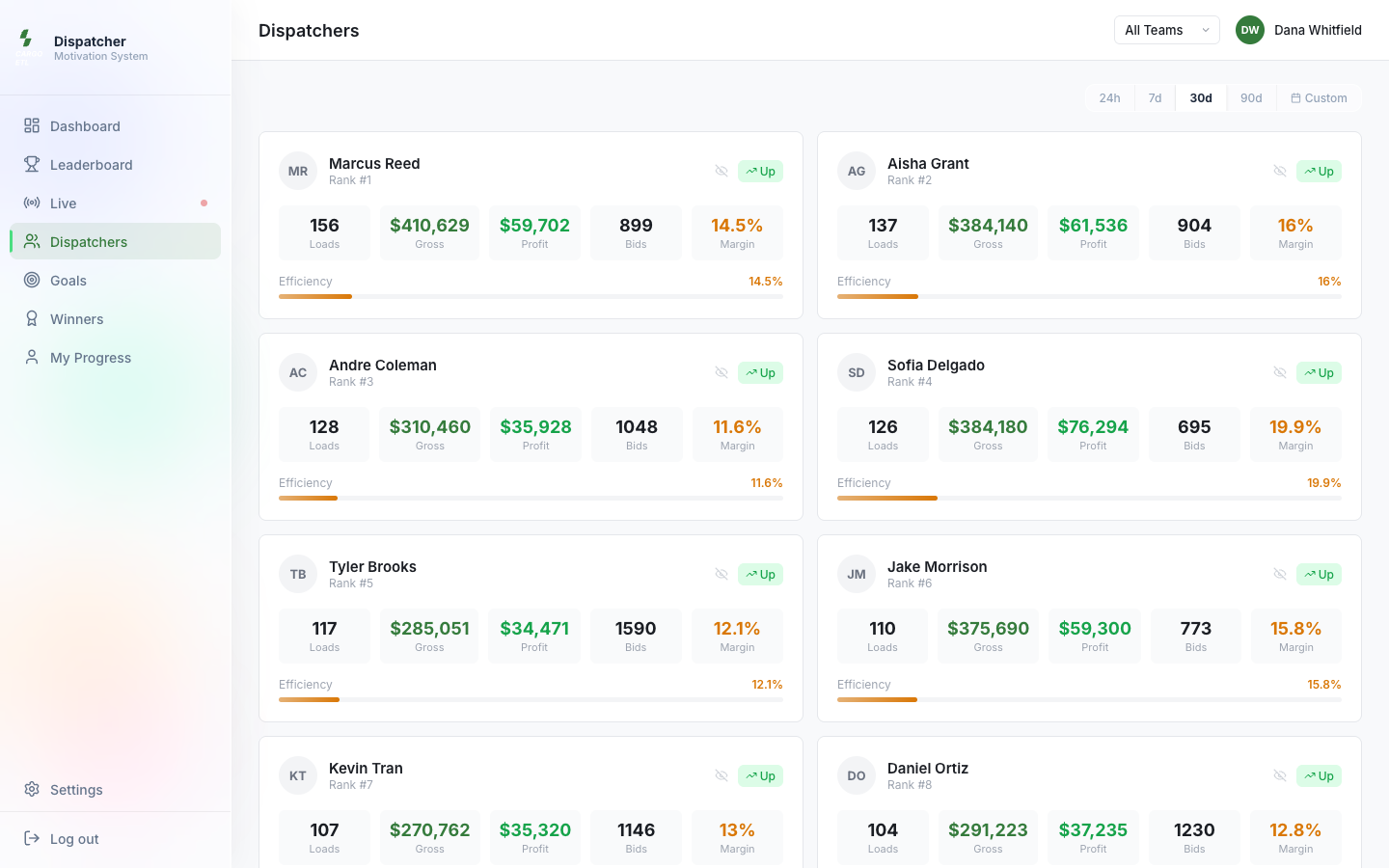
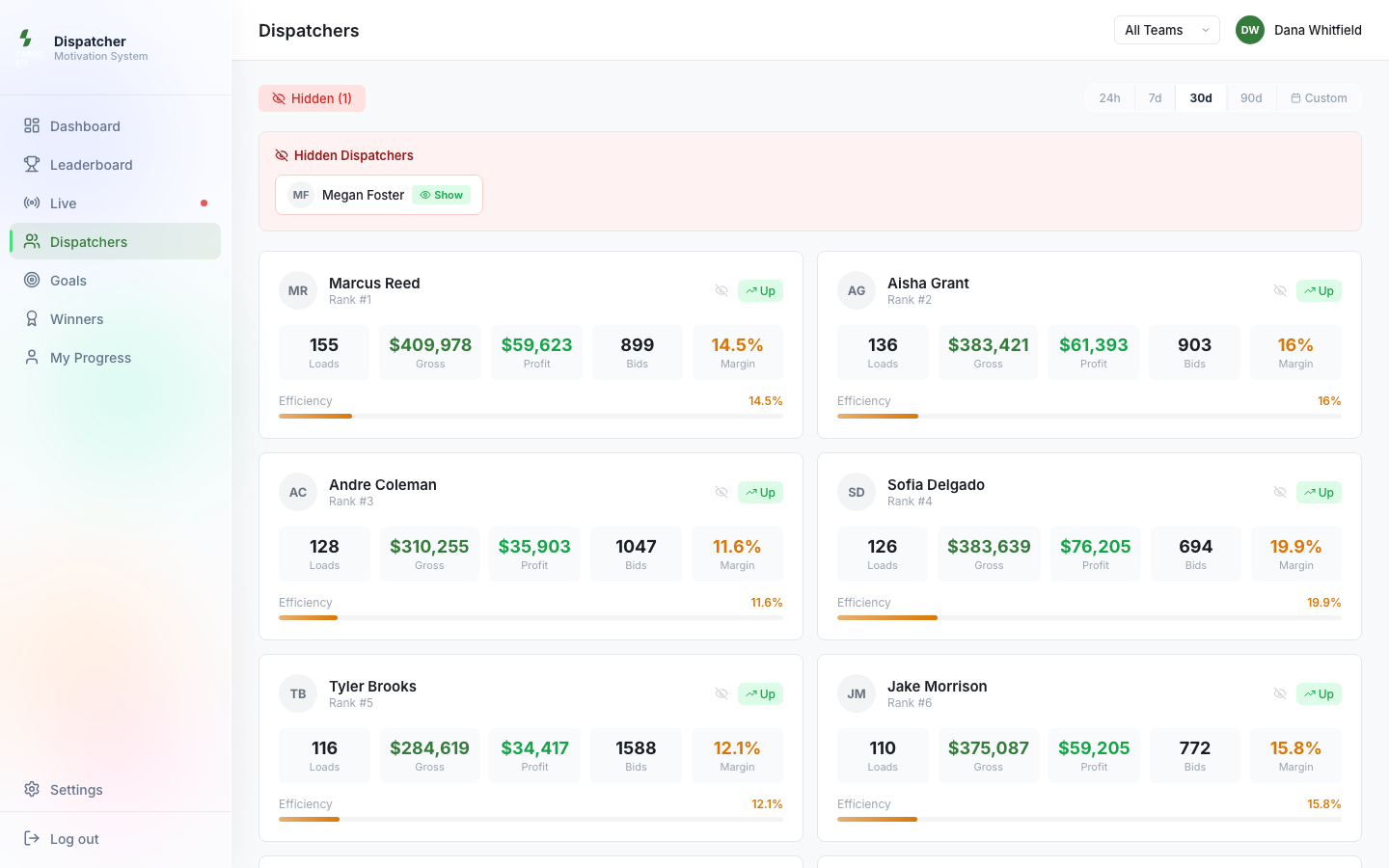
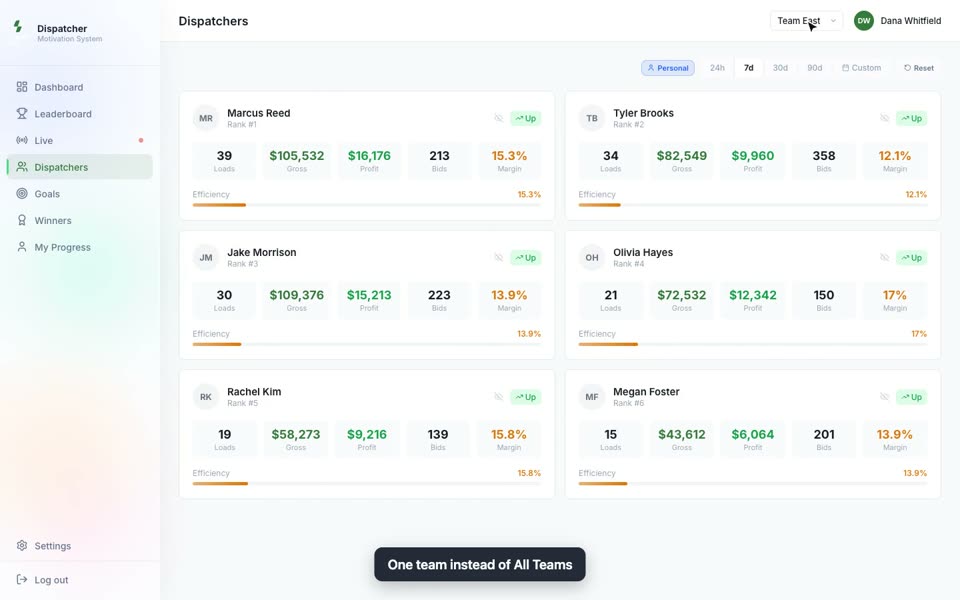
A card for each dispatcher for the chosen period: Loads, Gross, Profit, Bids, Margin, rank and trend.
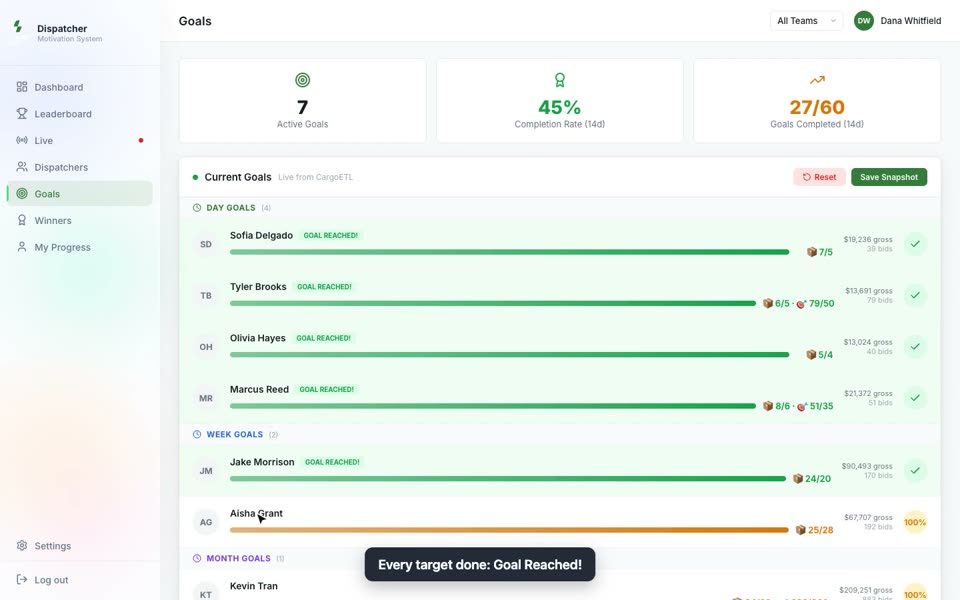
Goals
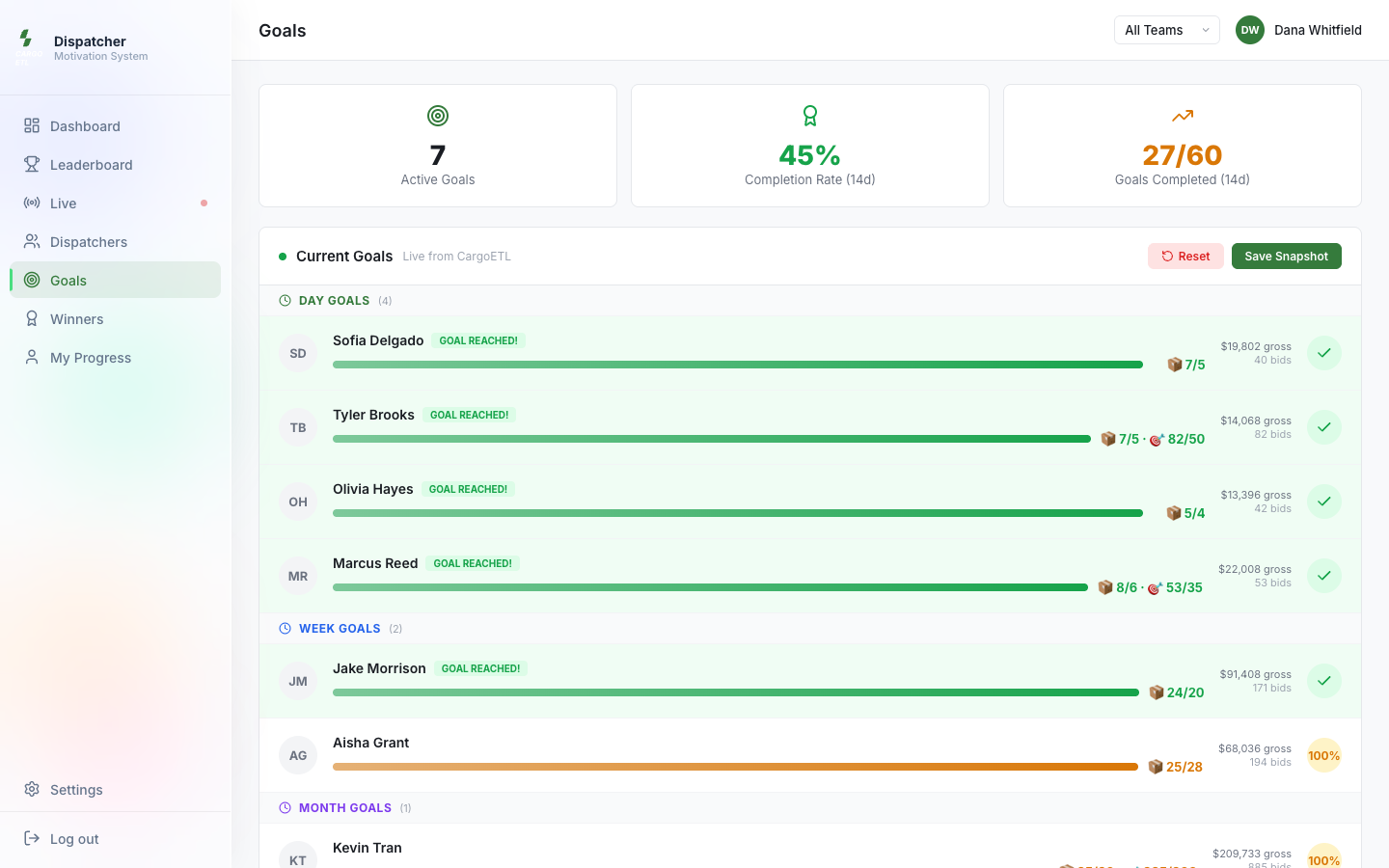
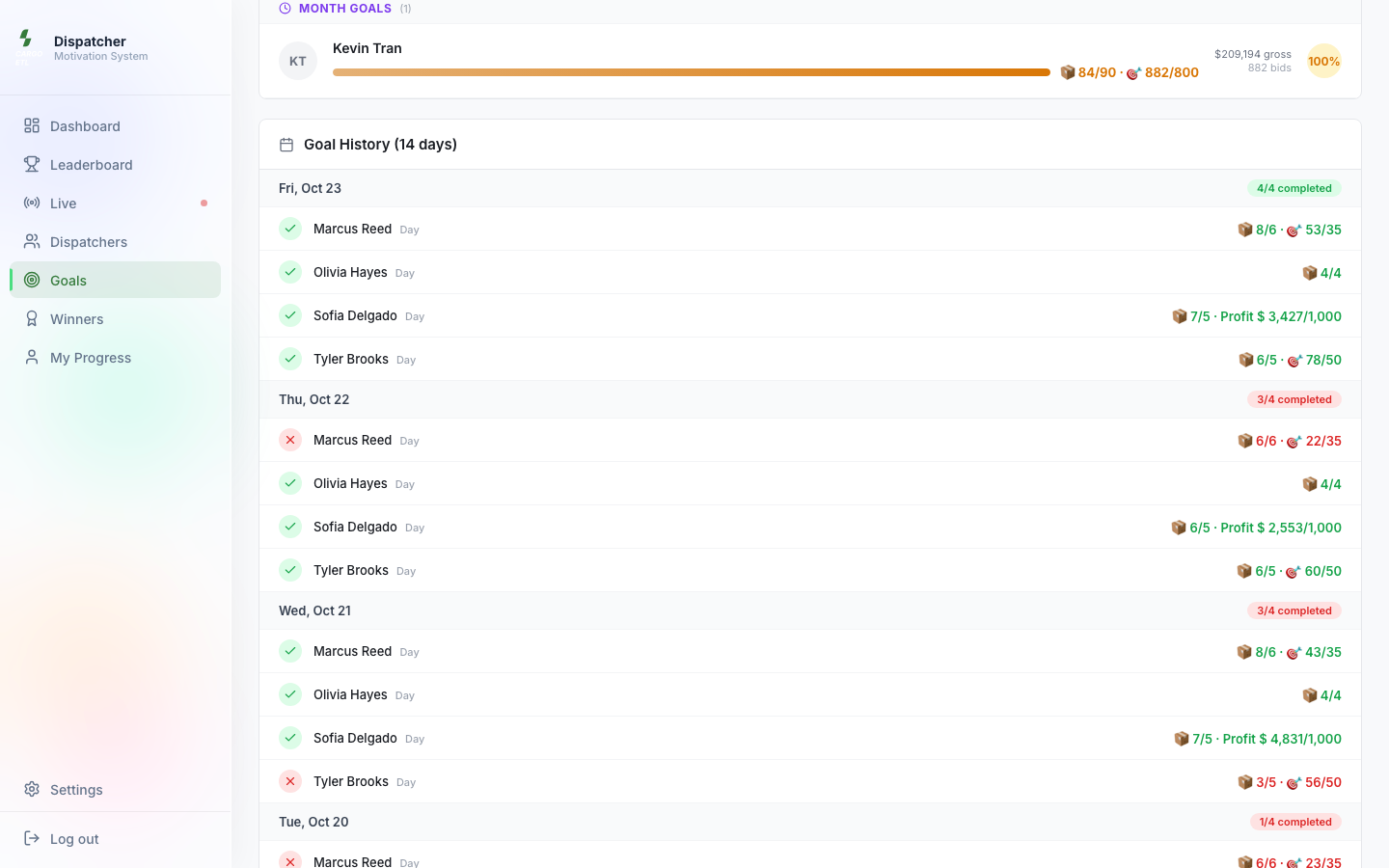
Active Goals, Completion Rate (14d), Goals Completed (14d), then Current Goals with a progress bar for each goal and Goal History (14 days): which goals were reached, day by day.
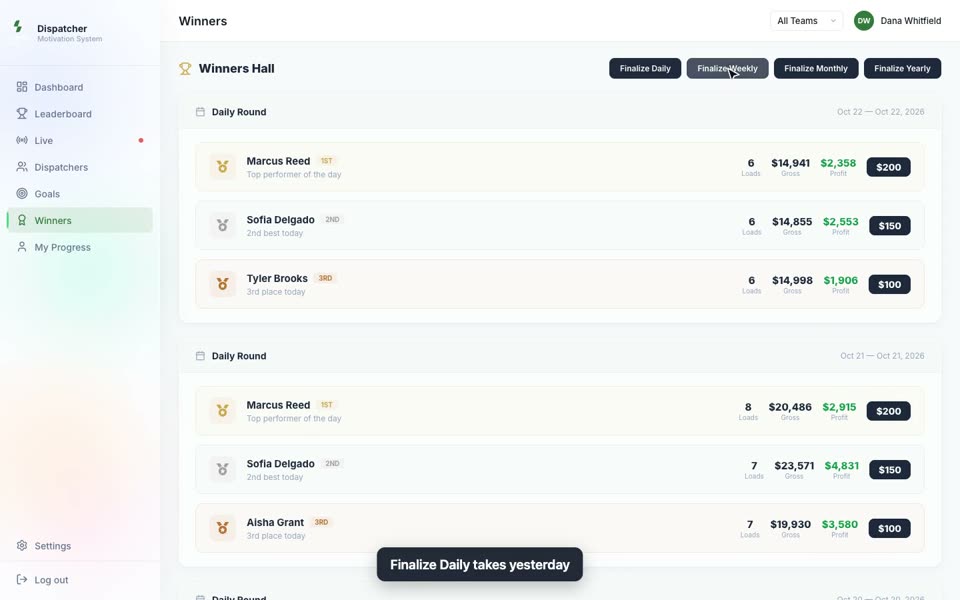
Winners
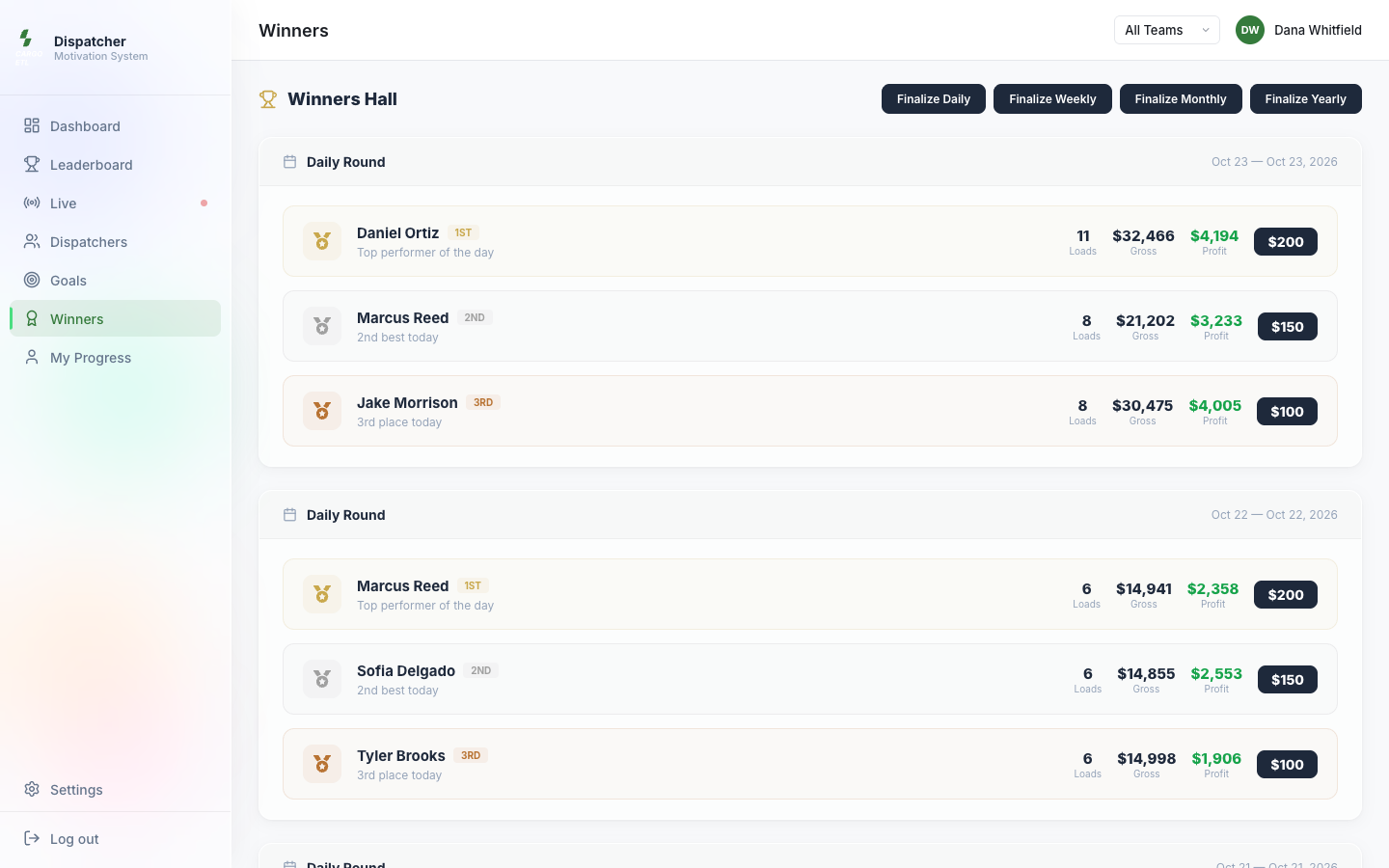
Winners Hall: places and prize money of past rounds. Admins have the buttons Finalize Daily / Weekly / Monthly / Yearly.
My Progress
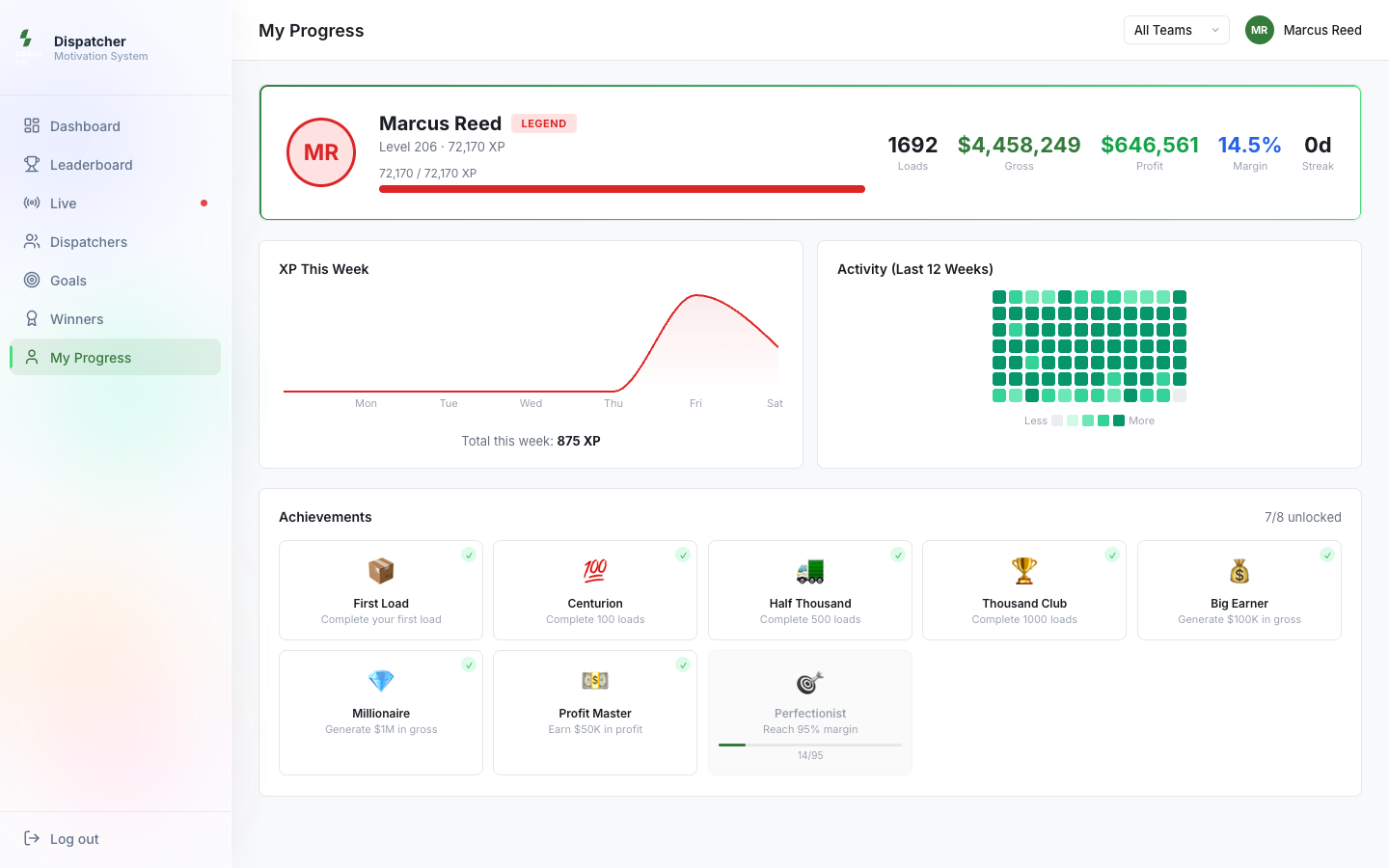
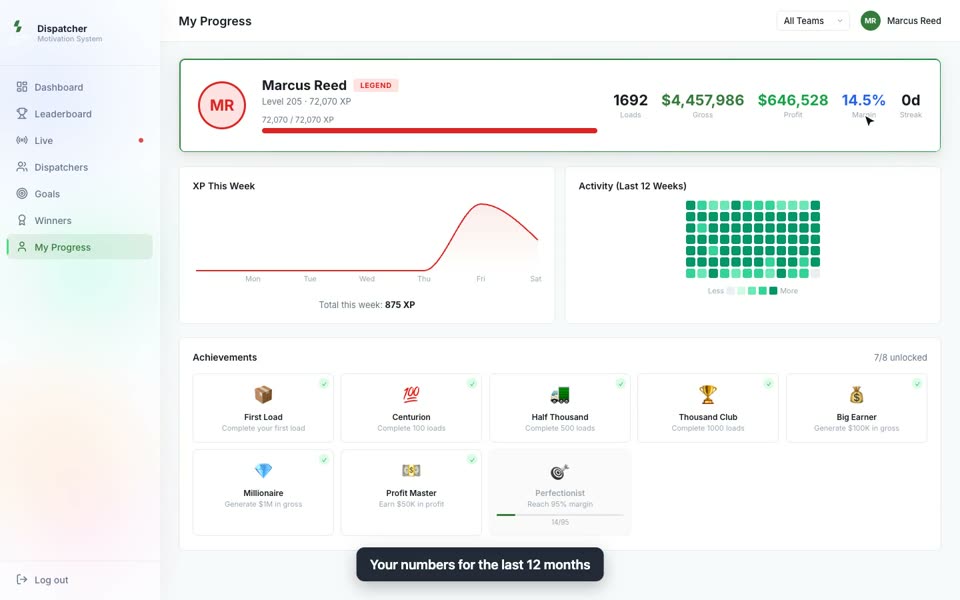
The signed-in dispatcher's own page: rank, level and XP, totals for the last 12 months, XP this week, activity for the last 12 weeks and Achievements.
Settings (admins only)
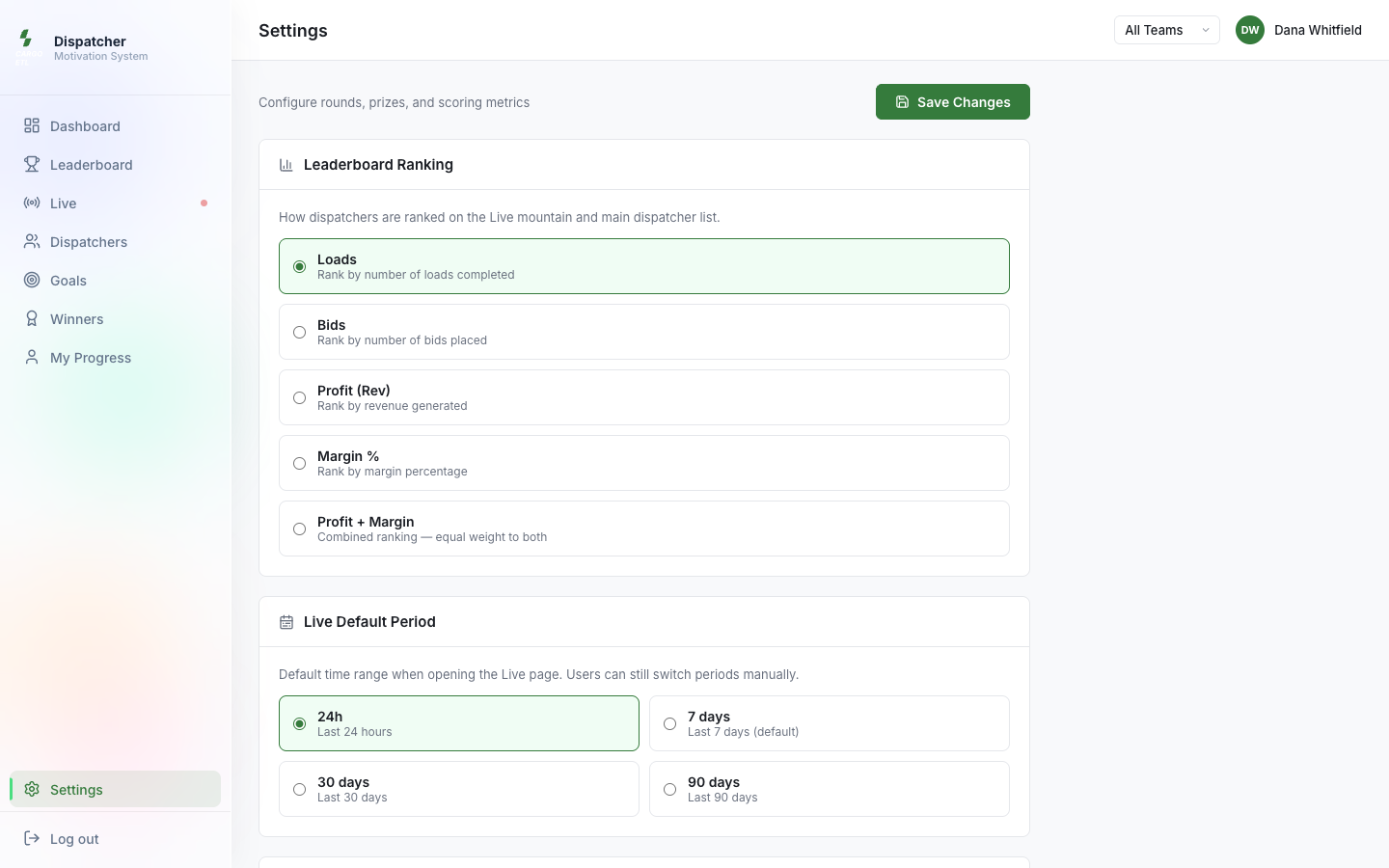
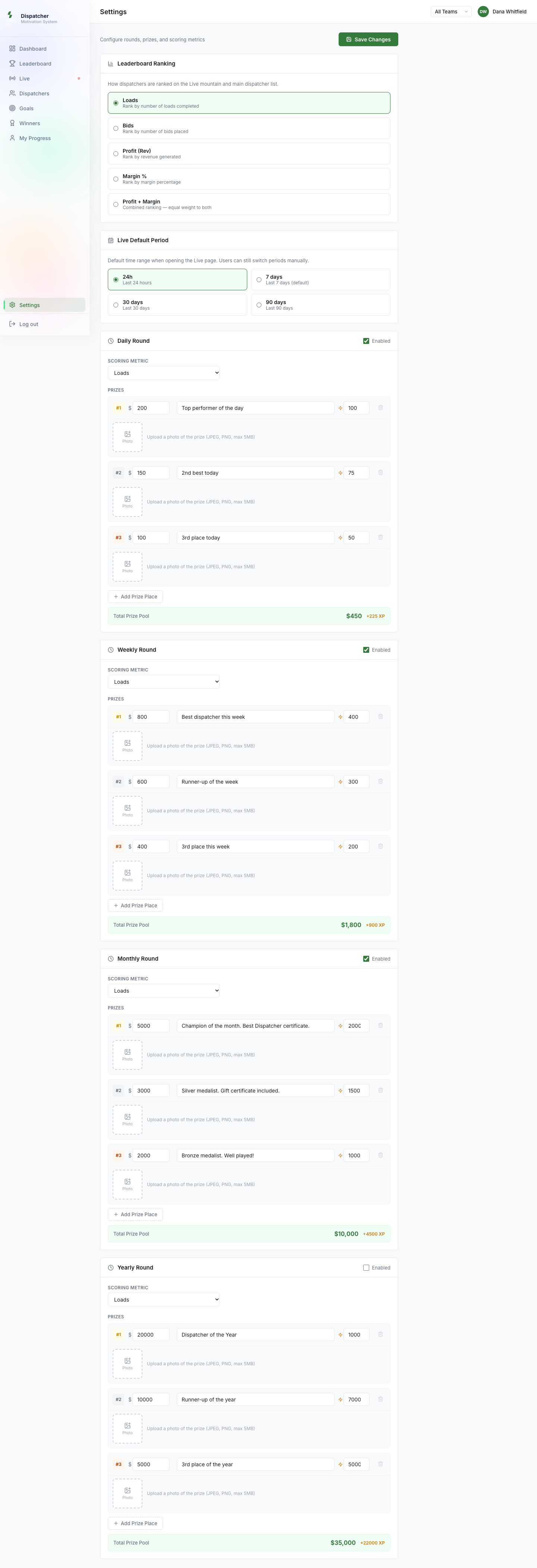
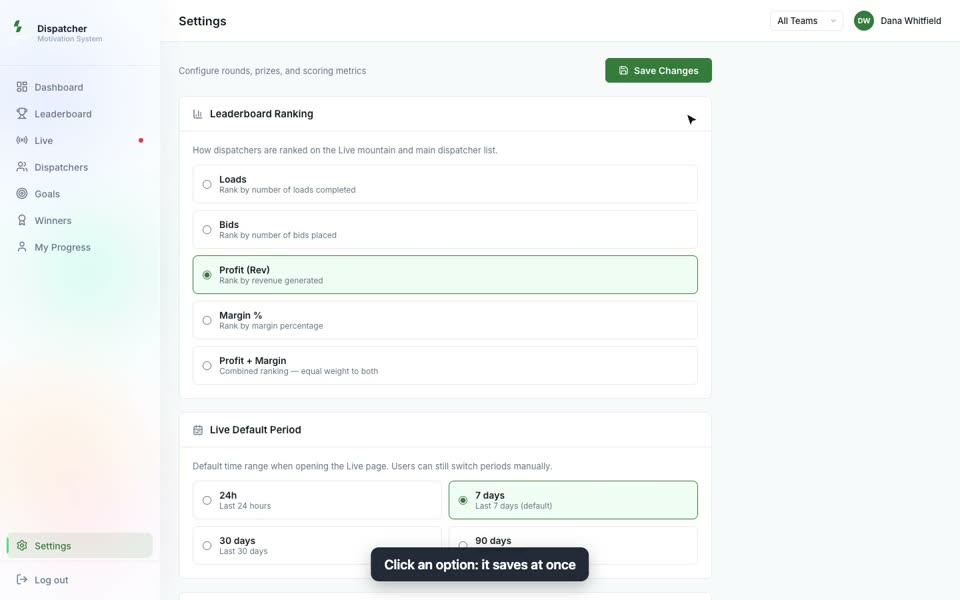
Leaderboard Ranking (what the boards rank by), Live Default Period, and a block for each round: Daily / Weekly / Monthly / Yearly Round with Enabled, Scoring Metric and Prizes.
How to
Put Live on the office TV
- On the TV (or the computer connected to it) open Leaderboard and sign in.
- Click Live in the menu.
- Pick the period at the top: 24h for today. The choice is saved only in this browser, other people's screens do not change (you will see the Personal badge; Reset brings back the default).
- Click the square button in the top right corner of the mountain (Fullscreen). The mountain fills the whole screen.
- To leave full screen press Esc or click the same button.
Tips:
- The default period for everyone is set by an admin in Settings → Live Default Period.
- On a weak smart TV add ?lite=1 to the address (for example jobleaderboard.com/live?lite=1): animations turn off and the page updates once a minute instead of every 10 seconds.
Pick a period or one team
- On Dashboard, Leaderboard, Live or Dispatchers find the period buttons at the top right.
- 24h, 7d, 30d, 90d count back from this moment: 24h is the last 24 hours, not today since midnight.
- For exact dates click Custom, pick From and To and click Apply. A custom range takes whole days, from midnight to midnight Eastern time.
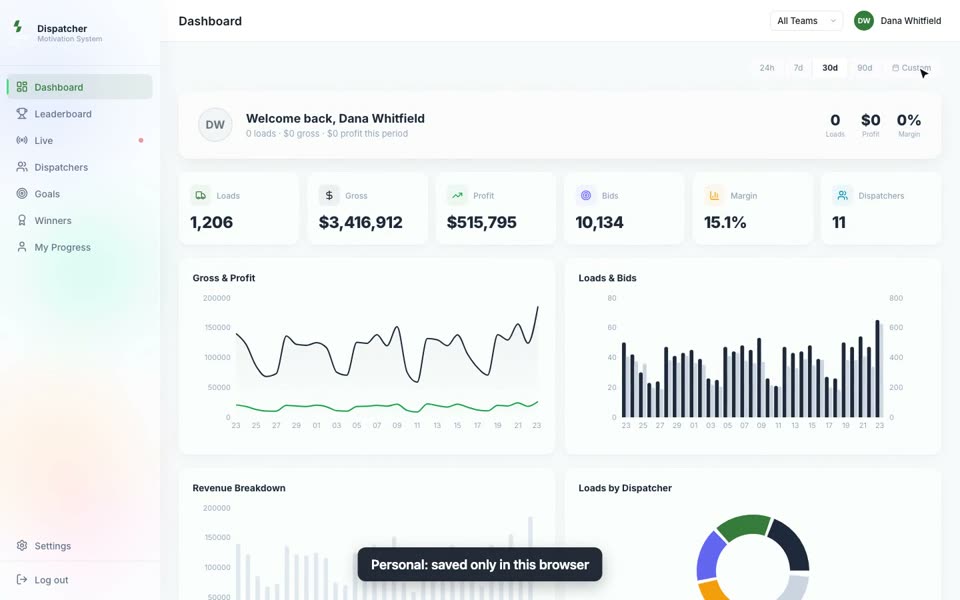
- On Dashboard, Live and Dispatchers a preset (24h, 7d, 30d, 90d) is remembered in this browser only, and these three pages share it. The Personal badge shows it; Reset brings back the default. A custom range is not remembered.
- On the Leaderboard page a period you pick replaces the round: the tabs fade and Custom range shows instead of Ends in. Click Daily, Weekly or Monthly to go back to the round.
- To see one team, pick it in the list at the top right instead of All Teams. The choice stays on every page until you change it.
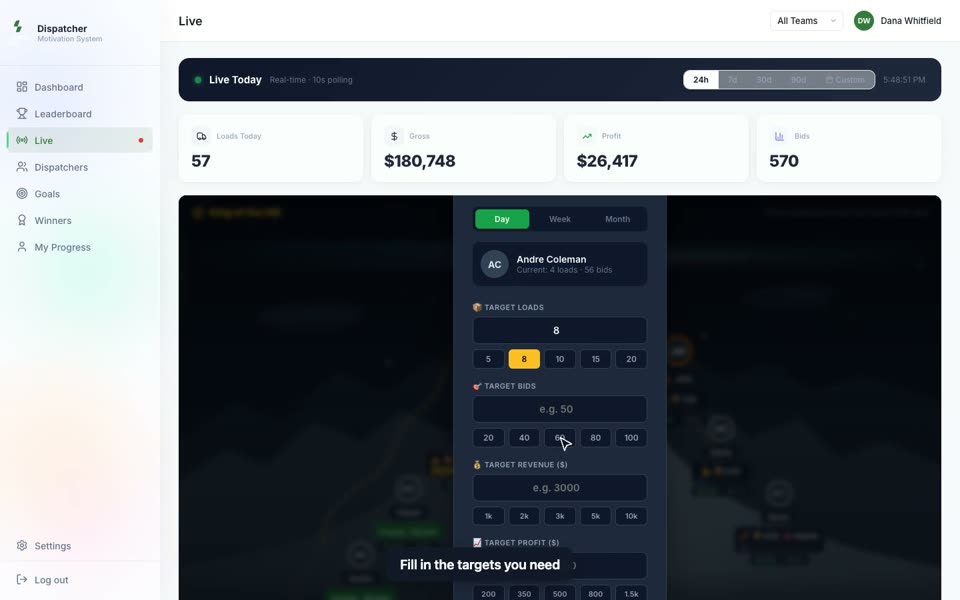
Set a goal for a dispatcher
- Open Live.
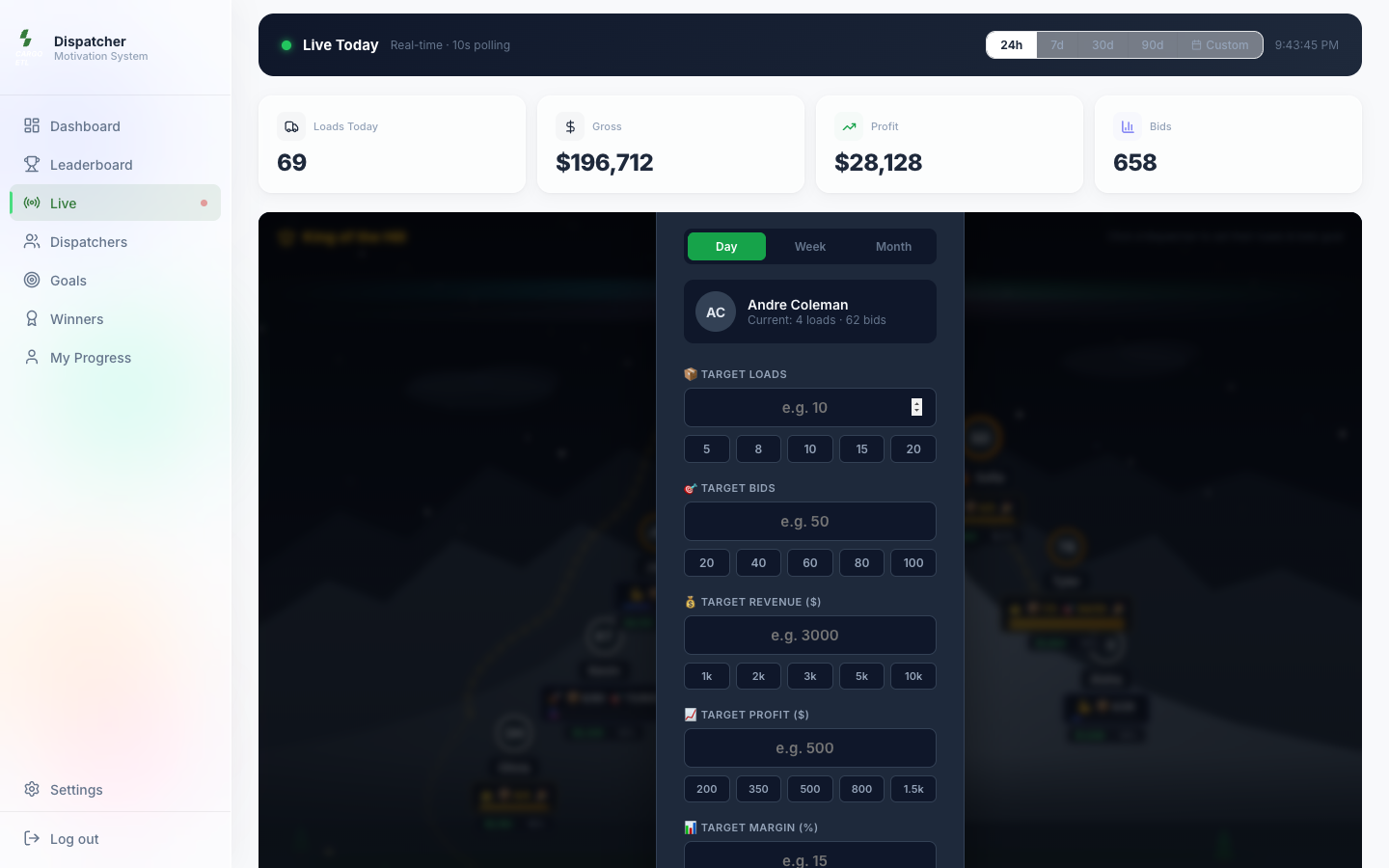
- Click the dispatcher on the mountain. The Set Goal window opens (admins only).
- Choose the period: Day, Week or Month.
- Fill in one or more targets: Target Loads, Target Bids, Target Revenue ($), Target Profit ($), Target Margin (%). The small buttons under each field fill in a typical number.
- If you want, set a Reward on completion: XP and Bonus ($).
- Click Set Goal.
The goal appears on the mountain under the dispatcher with a progress bar, and on the Goals page. A goal is reached when every target you filled in is reached. A day goal counts from midnight Eastern time, a week goal from Monday, a month goal from the 1st.
Change or remove a goal
- Open Live and click the dispatcher on the mountain again.
- Pick the period of the goal: Day, Week or Month. The window shows the goal that is set now.
- To change it, edit the numbers and click Set Goal.
- To delete it, click Remove Day Goal (or Remove Week Goal, Remove Month Goal).
Check goals and their history
- Open Goals.
- At the top: Active Goals, Completion Rate (14d) and Goals Completed (14d).
- Current Goals shows each goal with its progress as "done / target". Green with Goal Reached! means every target is done.
- Goal History (14 days) shows each closed day, week and month: a green check is reached, a red cross is missed, with the numbers "done / target".
History is saved by itself after midnight Eastern time. Save Snapshot saves today's results right now. Reset saves a snapshot and starts the period over (it asks for confirmation).
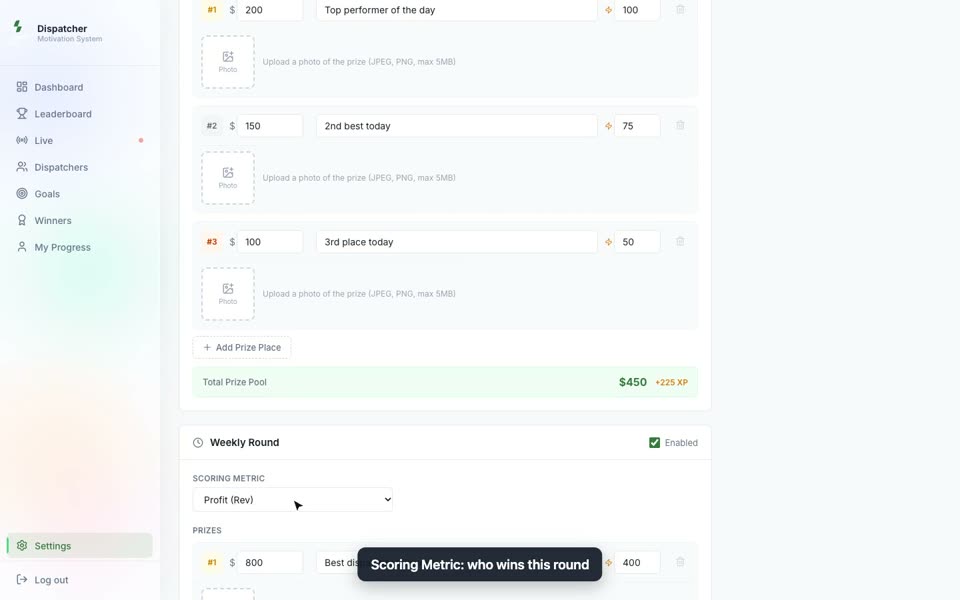
Set up a competition: day, week, month
- Click Settings in the menu (admins only).
- Find the round: Daily Round, Weekly Round, Monthly Round or Yearly Round. Tick Enabled.
- In Scoring Metric choose what wins: Loads, Bids, Profit (Rev), Margin % or Profit + Margin.
- In Prizes set the money ($), the description and XP for each place. Add Prize Place adds a place, the trash icon removes one.
- To add a prize photo, click Photo next to the place and pick a JPEG or PNG up to 5 MB.
- Click Save Changes at the top. The button turns into Saved!.
The round appears as a tab on the Leaderboard page with its Prize Pool and Ends in.
Record the winners of a round
- Open Winners (the Finalize buttons are for admins).
- Click Finalize Daily (yesterday), Finalize Weekly (last 7 days), Finalize Monthly (last 30 days) or Finalize Yearly (last 365 days).
- The app says how many winners were saved, for example "3 winners saved!". The round appears in Winners Hall with places, numbers and prize money.
Each round can be finalized once. A second click answers "already_finalized". Places follow the round's Scoring Metric in Settings. Only dispatchers with a result above zero get a place.
Choose how dispatchers are ranked
- Click Settings in the menu (admins only).
- In Leaderboard Ranking pick Loads, Bids, Profit (Rev), Margin % or Profit + Margin. There is no Save button: it saves as soon as you click and shows Saved.
- The order changes on the Live mountain and on the Dispatchers page.
In the same place, Live Default Period sets what Live shows when someone opens it: 24h, 7 days, 30 days or 90 days. It also saves on click. Anyone can still switch the period on their own screen, and that choice stays in their browser.
Leaderboard Ranking is not the same as a round's Scoring Metric: the metric decides the places and prizes of that round, the ranking decides the everyday order on Live and Dispatchers.
Look at one dispatcher's numbers
- Open Dispatchers: every dispatcher's Loads, Gross, Profit, Bids, Margin for the period.
- Change the period at the top right: 24h, 7d, 30d, 90d or Custom (pick From and To, then Apply).
- To look at one team, choose it at the top instead of All Teams.
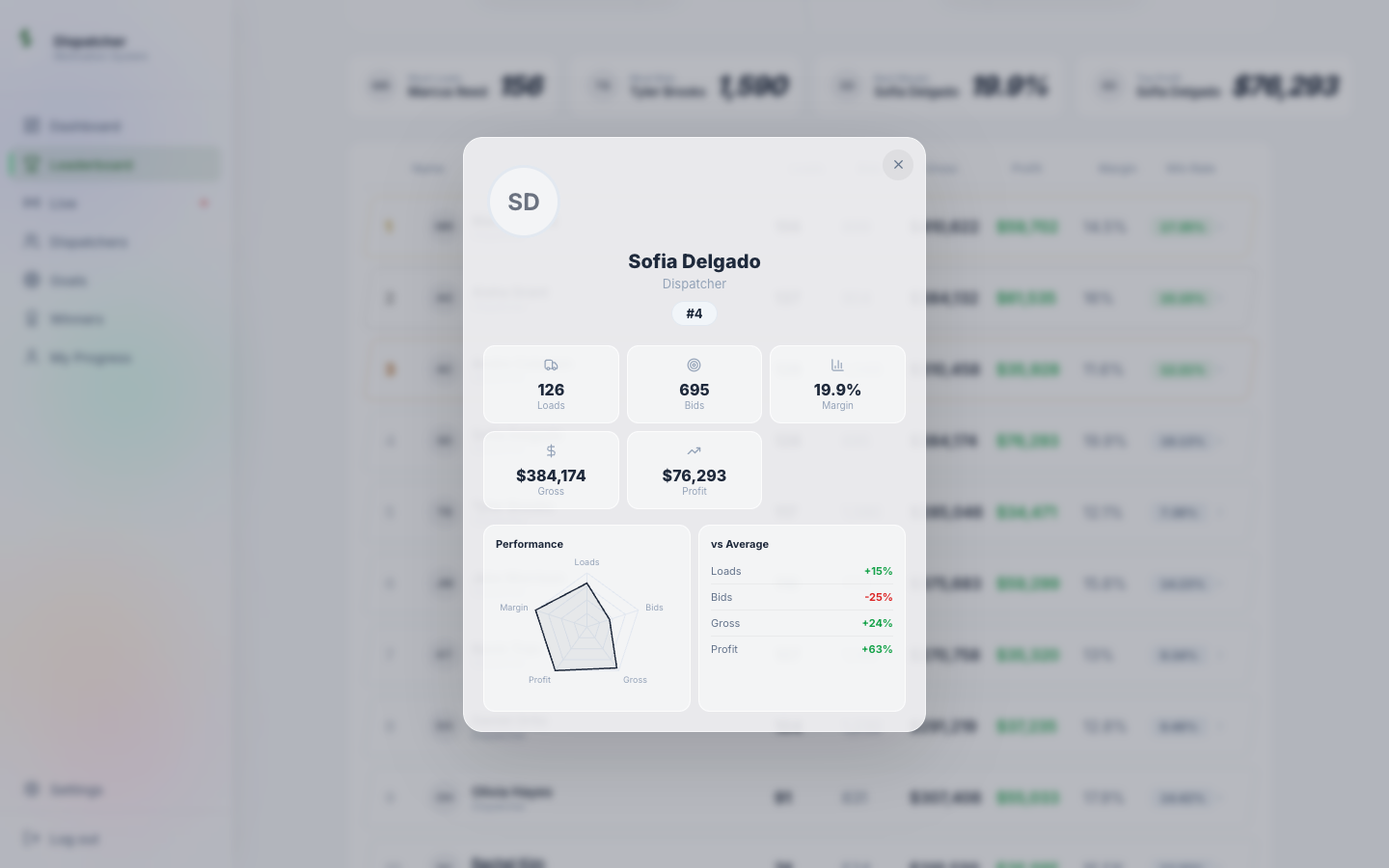
- On Leaderboard or Live click a dispatcher's row (or Profile under a champion). The card shows the numbers, the rank, a Performance chart and vs Average: how far the dispatcher is above or below the team average.
See your own progress (dispatchers)
- Click My Progress in the menu.
- At the top: your rank (from Rookie to Legend), level and XP, and your Loads, Gross, Profit, Margin for the last 12 months.
- XP This Week: extra points you earned this week, for goals and prize places.
- Activity (Last 12 Weeks): one square per day, darker means busier.
- Achievements open by themselves when you reach them (First Load, Centurion, Millionaire and others). A bar shows how close you are to the next one.
On Dashboard, the Welcome back line shows your own loads, profit and margin for the period you pick.
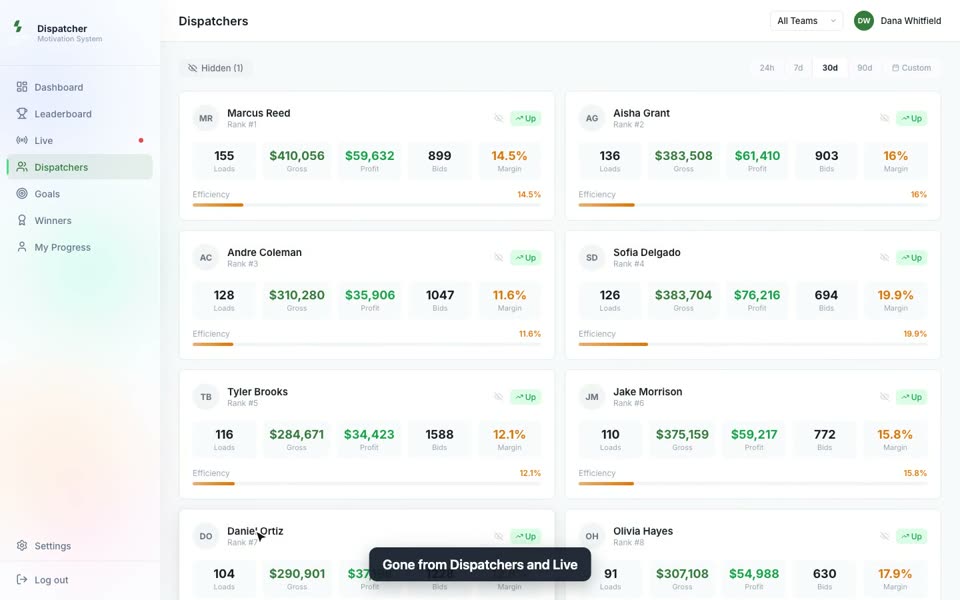
Hide a dispatcher or add a photo
- Open Dispatchers (admins only).
- To hide someone (for example a person who left), click the crossed eye on their card and confirm. They are no longer shown on the Dispatchers page and on Live.
- To bring them back, click Hidden (N) at the top left and then Show.
- To add a photo, click the initials circle on the card and choose a file: JPEG, PNG, WebP or GIF up to 5 MB. The photo shows on the boards. To change it, upload a new one.
Questions
A number differs from Cargo ETL
Leaderboard keeps no numbers of its own, it reads them from Cargo ETL. Check four things:
- The period. Daily, 24h and the other buttons count back from this moment. To compare one calendar day, click Custom and pick the same date in From and To. Days are counted in Eastern time.
- The team. The list at the top right should say All Teams.
- The names. Profit here is what Cargo ETL statistics call revenue. Gross is the total of load rates.
- Hidden dispatchers. They are left out of Live and Dispatchers. An admin sees them under Hidden (N) on the Dispatchers page.
If it still differs, write down the dispatcher, the dates and both numbers and send them to your Cargo ETL support.
Do I need to enter data in Leaderboard?
No. Dispatchers and numbers come from Cargo ETL. If a number looks wrong, check it in Cargo ETL first.
A new dispatcher is not on the board
They appear after their first bid or load in the chosen period. The dispatcher list is updated from Cargo ETL every few minutes.
Why does someone see Settings and I do not?
Settings, goals, hiding, photos and Finalize are for users with the Owner, Admin or Manager role in Cargo ETL.
The sign-in page shows an error
- SSO token has expired: go back to Cargo ETL and click L again
- This Cargo ETL user has not been synchronized into Leaderboard yet: a new user appears in Leaderboard a few minutes after they are added in Cargo ETL. Try again later
- This SSO link is not valid for this company: your company is not connected to Leaderboard yet. Ask your Cargo ETL support
- This user is not active: the user is turned off in Cargo ETL
- The page says Sign in through Cargo ETL and has no form: open Leaderboard with the L button in Cargo ETL
I changed the period on the TV and now everyone sees it?
No. The period buttons are saved only in your browser. The default for everyone is in Settings → Live Default Period.
Why do the Dashboard totals stay the same when I pick a team?
The six totals and the charts by day on Dashboard are always for the whole company. To compare teams, pick a team on Leaderboard or Dispatchers.
Why does Welcome back show zeros?
It shows your own loads. If you do not book loads yourself (for example you are an owner), it shows zeros. Company totals are right below it.
How is XP counted?
XP comes from Cargo ETL for the last 31 days: 50 XP for each load, 2 XP for each bid and 1 XP for each dollar of profit. Every 350 XP is one level. Ranks: Rookie, Bronze (500 XP), Silver (1,500), Gold (3,000), Platinum (5,000), Diamond (8,000), Legend (12,000). Rewards for goals and prize places show in XP This Week.
Can a dispatcher add their own photo?
No. Photos are added by an admin on the Dispatchers page.
Are the prize bonuses paid automatically?
No. Leaderboard shows and records winners and bonuses. The money is paid by the company as usual.
Winners Hall is empty
Winners are recorded with the Finalize buttons on the Winners page.
Live shows "Waiting for activity..."
The Activity Feed shows only what happened while the page was open. Leave Live open and events will appear.
All videos (13)
 Leaderboard overview1:08
 Sign in and who sees what0:46
 Put Live on the office TV0:55
 Pick a period or one team0:55
 Set a goal0:46
 Check goals and their history0:53
 Set up a competition1:02
 Record the winners0:56
 Choose how dispatchers are ranked0:47
 Look at one dispatcher's numbers0:48
 Your own progress0:49
 Hide a dispatcher or add a photo0:37
 A number differs from Cargo ETL0:59